Problem:
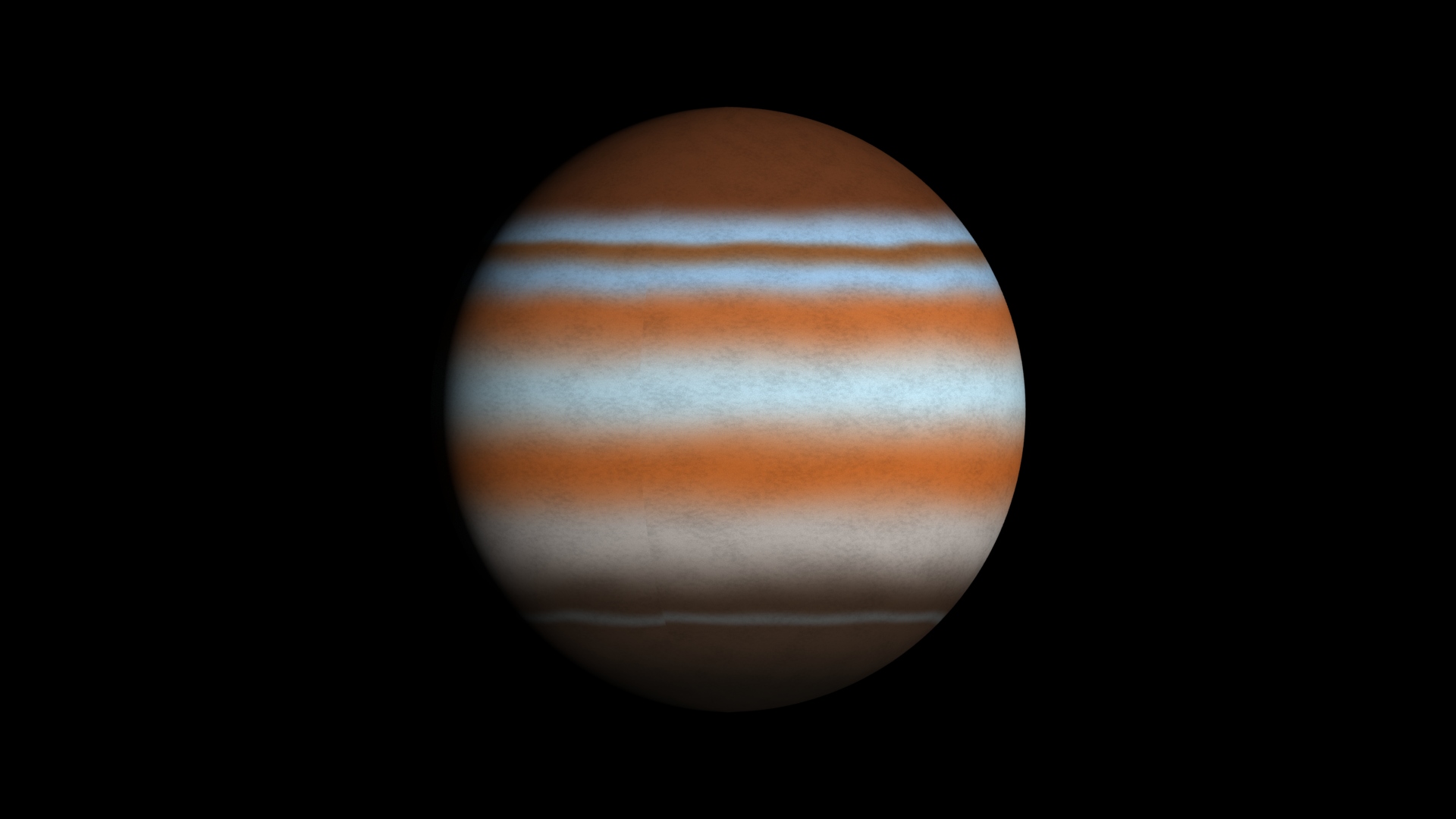
Using shaders, recreate photos of an orange and of Jupiter.
Solution:
Orange:
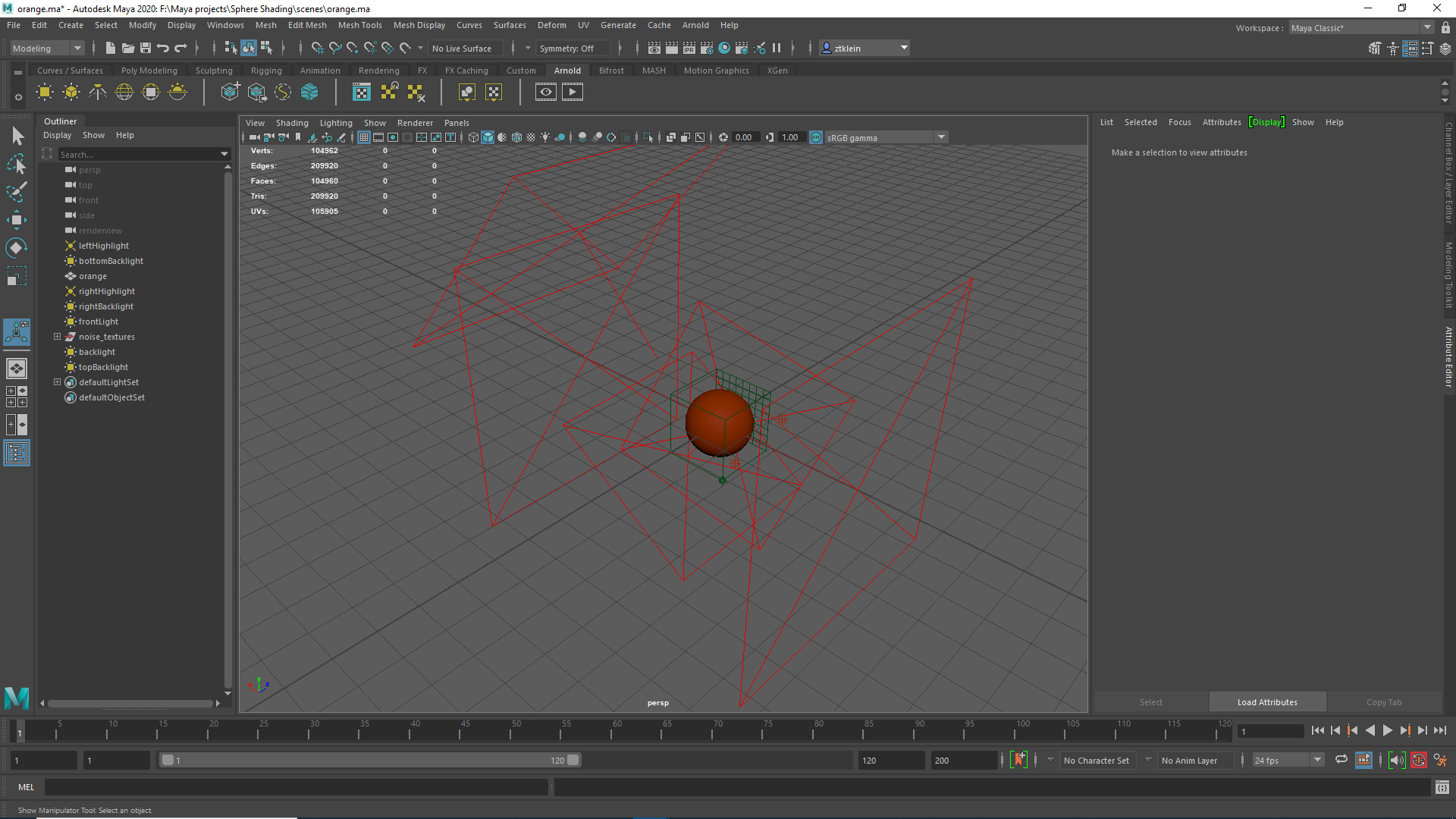
The first thing I did was set up my project and put a sphere in the scene. For the orange, I then added an indentation on one end for the little divot where the stem goes. I kept the orange relatively low-poly while working on the shaders so that test renders would go faster. I set the color to a sample from the example image.
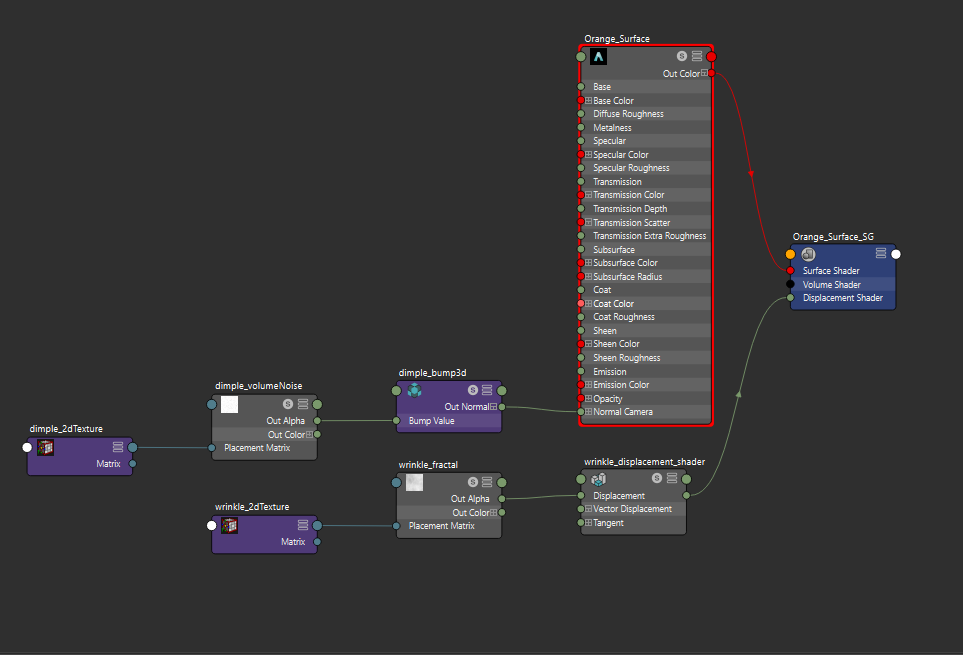
I spent a lot of time tinkering with different noise types and variables to get the dimples for the orange, which I fed into an aiStandardSurface’s normal camera attribute. I eventually settled on using a volume noise node.
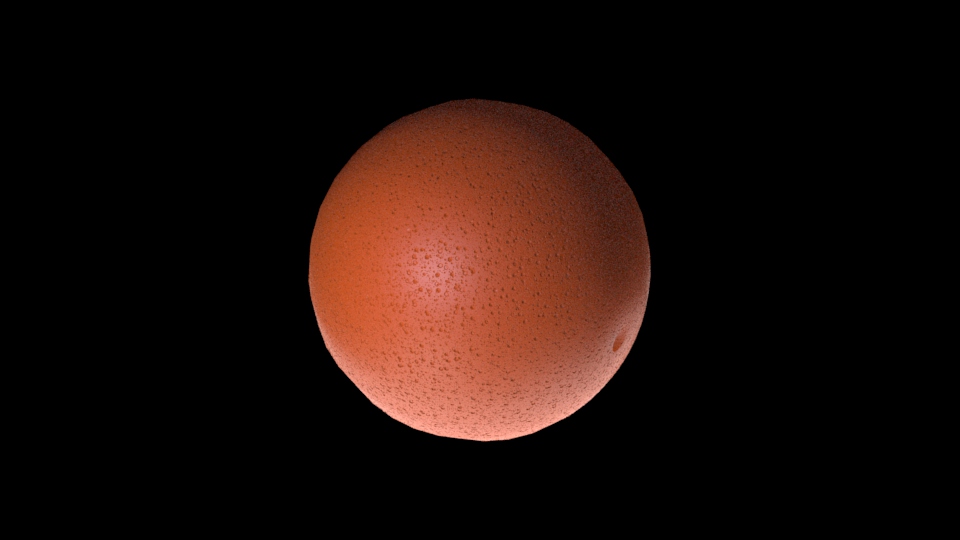
This didn’t quite look right, though — I realized that what I was missing was the wrinkles along the surface. For this, I fed a solid fractal node into the displacement shader. At first, it was far too bumpy, but knocking the scale to 0.04 looked good enough.
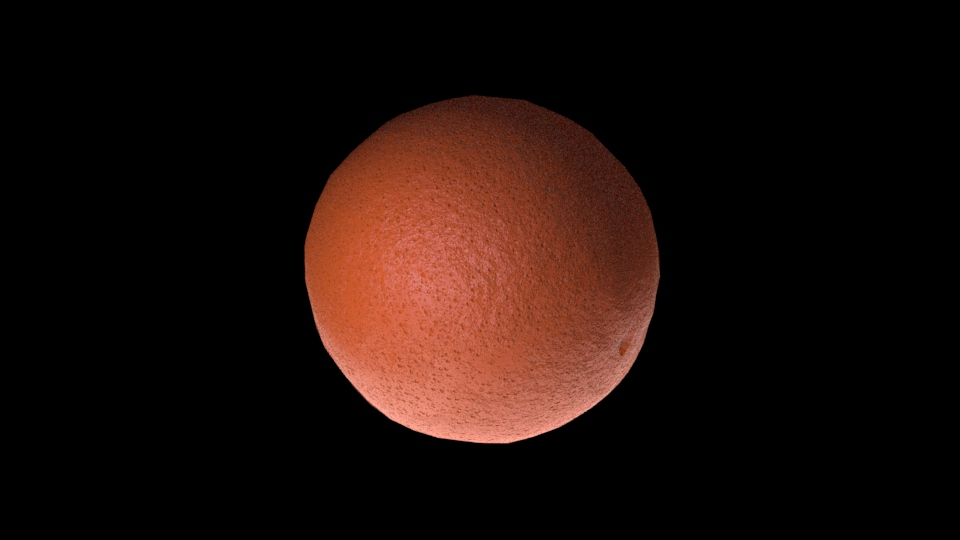
The lighting for the scene didn’t seem like it came from a simple 3 point lighting setup, but I could be mistaken. To get highlights where they should be, I made use of several area lights for backlights, two point lights to give highlights to the front of the orange, and an area light to cover the front of the orange.
This is the hypershade graph for the orange.
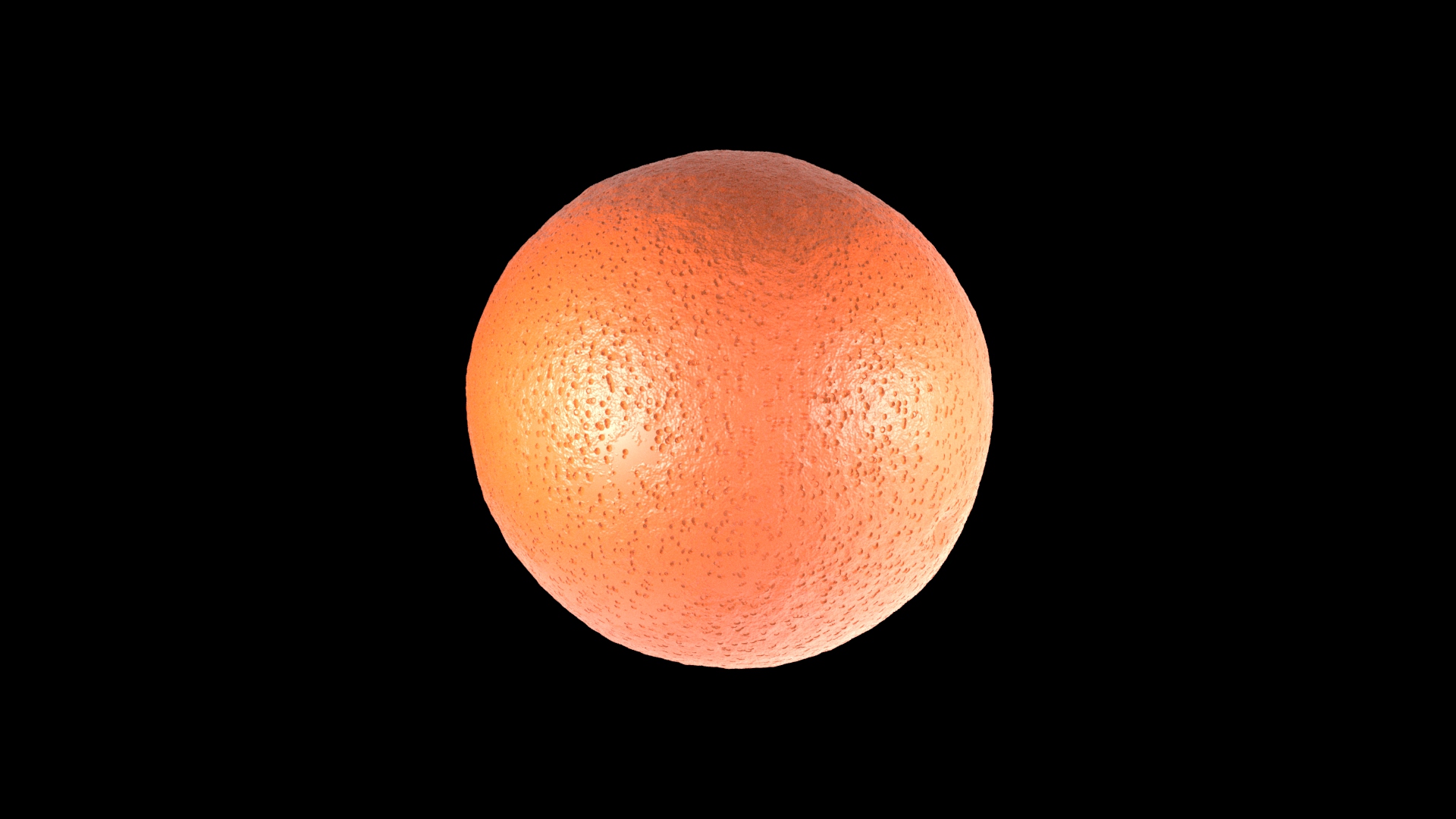
And the end result:
Jupiter:
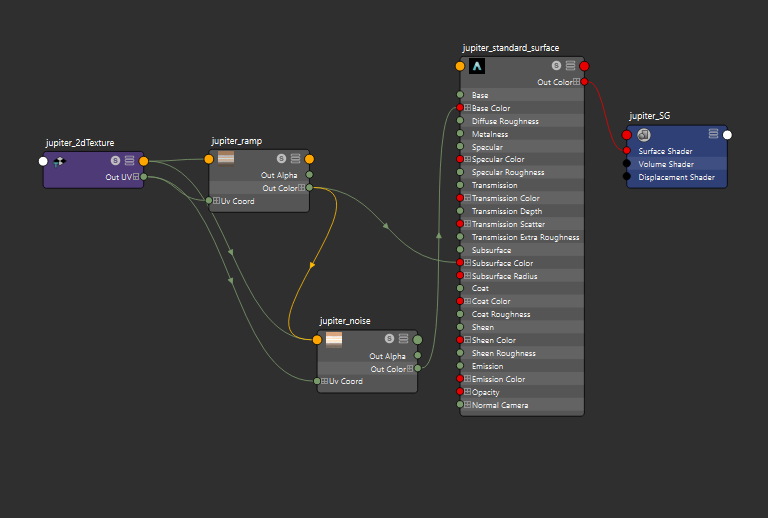
I started jupiter the same as the orange, opening a new scene and adding a sphere. I added colors with a ramp and fiddled with the ramp noise settings, but it still seemed a bit too smooth, so I fed the ramp into a noise node, which was then fed into an aiStandardShader. To get the effect of a distant light source, I used a direction light to light jupiter, reduced the specular to .1 weight, and gave a slight bit of subsurface scattering.